

Prerequisites
Before following this guide:- Read the Service Configuration guide to understand the requirements and configuration options. This guide assumes you have done so and only covers the Coolify-specific setup.
- Have Coolify installed and running.
Background
For the PowerSync Service to function correctly, you will need:- A database,
- Authentication service, and
- Data upload service.
Steps
Step 1: Create Docker Compose Empty resource
Step 1: Create Docker Compose Empty resource
Add the
Compose file as a Docker Compose Empty resource to your project.Step 2: Update environment variables and config files
Step 2: Update environment variables and config files
Update the environment variables and config files.Instructions for each can be found in the Configuration options section.
Step 3: Deploy the PowerSync Service
Step 3: Deploy the PowerSync Service
Click on the 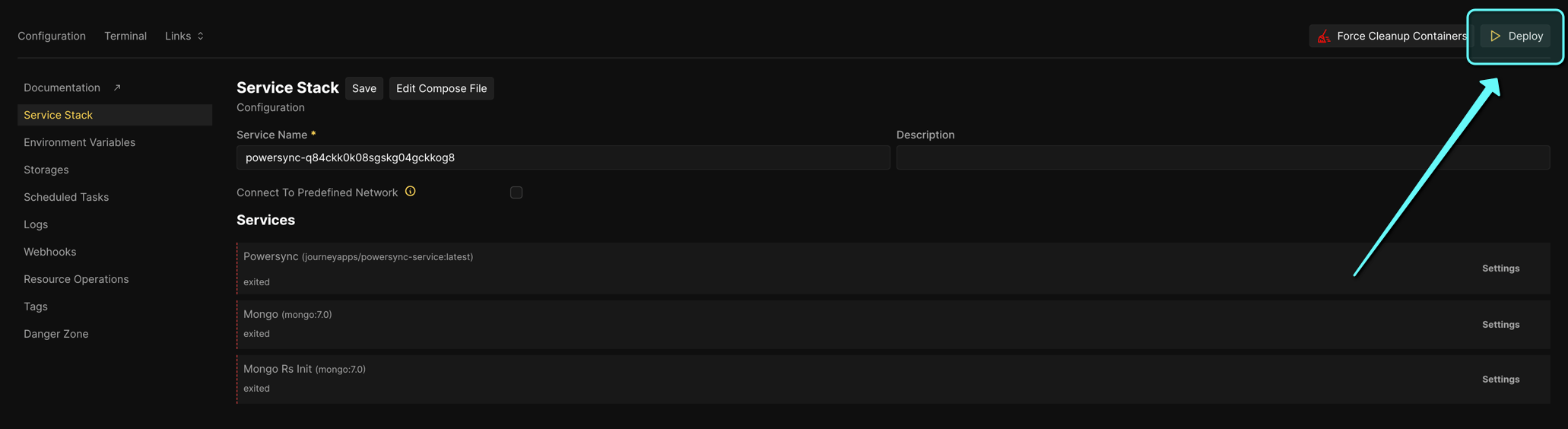
Deploy button to deploy the PowerSync Service.http://localhost:8080if default config was used, orhttp://{your_coolify_domain}:{PS_PORT}if a custom domain or port was specified.
Configuration Options
The following configuration options should be updated:- Environment variables
sync-config.yamlfile (according to your data requirements)service.yamlfile
Supabase
Supabase
- Environment variables
- PowerSync config
| Environment Variable | Value |
|---|---|
PS_DATABASE_TYPE | postgresql |
PS_DATABASE_URI | Connection string obtained from Supabase See step 5 in Connect PowerSync to Your Supabase |
PS_PORT | Keep default value (8080) |
PS_MONGO_URI | mongodb://mongo:27017 |
PS_JWKS_URL | Keep default value |
Custom
Custom
- Environment variables
- PowerSync config
| Environment Variable | Value |
|---|---|
PS_DATABASE_TYPE | postgresql OR mongodb OR mysql OR mssql |
PS_DATABASE_URI | The database connection URI (according to your database type) where your data is stored. |
PS_PORT | Default value (8080) You can change this if you want the PowerSync Service to be available on a different port. |
PS_MONGO_URI | mongodb://mongo:27017 |
PS_JWKS_URL | The URL of the JWKS endpoint of your authentication service. |
Base Compose File
The following Compose file serves as a universal starting point for deploying the PowerSync Service on Coolify.
Compose file
Compose file